Image tool · Live in the studio
AI Image Upscaler
Small image in, sharp image out.
Take a low-resolution or blurry image and get a bigger, cleaner version back. Detail is recovered, not just stretched.
No sign-in needed to look around the studio. Or try the simple upscale ai art for print page.
Image to Image
- Input
- Image
- Output
- Image
- Live models
- 2
- AI labs
- 2
(01)What it does
Resolution when you need it
Upscaling is for the image you have but can't use: too small to print, too soft to post, too old to look right.
Image Upscale on trendshiftlabs enlarges and sharpens images while preserving the original. Live tools include Clarity Upscaler and Topaz Upscale.
You can open the studio app and look around without signing in. Generating spends monthly credits on a Starter, Creator, or Pro plan. Outputs save to your gallery so you can reuse them in other tools.
Who it's for
Who upscaling is for
Use upscale when the composition is already right but the file is soft, small, or compressed. Marketplace images, AI drafts headed to print, and social crops that need more pixels all belong here. Clarity and Topaz cover different tastes of sharpening.
Upscale will not fix a bad crop or a wrong subject. Fix composition with image-to-image first, then enlarge.
- Real detail, not blur
- The models redraw texture and edges as they enlarge, so results look photographed, not zoomed.
- Rescue old images
- Screenshots, old phone photos, tiny web images. Give them a second life at a usable size.
- Two upscalers live
- Clarity for a natural look, Topaz for maximum sharpness. Pick per image.
- Print-ready sizes
- Go big enough for posters and packaging without your image falling apart.

(02)How it works
How you use it
Upload it
Small, soft, or compressed is fine.
Choose the strength
Subtle cleanup or full redraw.
Download the result
Bigger, sharper, ready to use.
(03)Models
What it runs on.Two live models from two labs.
Every model listed here is live in the studio today. Switch between them in the composer; each one reads a prompt a little differently.
- Clarity
- Clarity Upscaler
- Topaz Labs
- Topaz Upscale
(04)Guide
Getting a sharper file without plastic skin
Start from the highest quality source you have. Upscaling a tiny, blocky JPEG invents texture. Prefer a clean gallery download over a screenshot.
Compare Clarity and Topaz on the same image once. One will usually look more natural for faces, the other more punchy for products. Stick with the winner for that asset type.
Practical tips
- Do not stack upscales endlessly; noise and fake detail pile up.
- Upscale after edits, not before, when you still expect big changes.
- Check faces and type at 100% zoom before you publish.
- If the image is already large and sharp, skip this tool and save the credits.
Know before you spend
What upscaling cannot do
It cannot recover true optical detail that was never captured. It estimates plausible detail. That is enough for many web and print jobs, and wrong for forensic or measurement work.
Heavy upscales cost more credits. Use them on finals, not on every exploratory draft.
(05)Use cases
Where it earns its keep
Print and posters
Web-sized images scaled up to print without artifacts.
Old photos
Sharpen what your old camera couldn't capture.
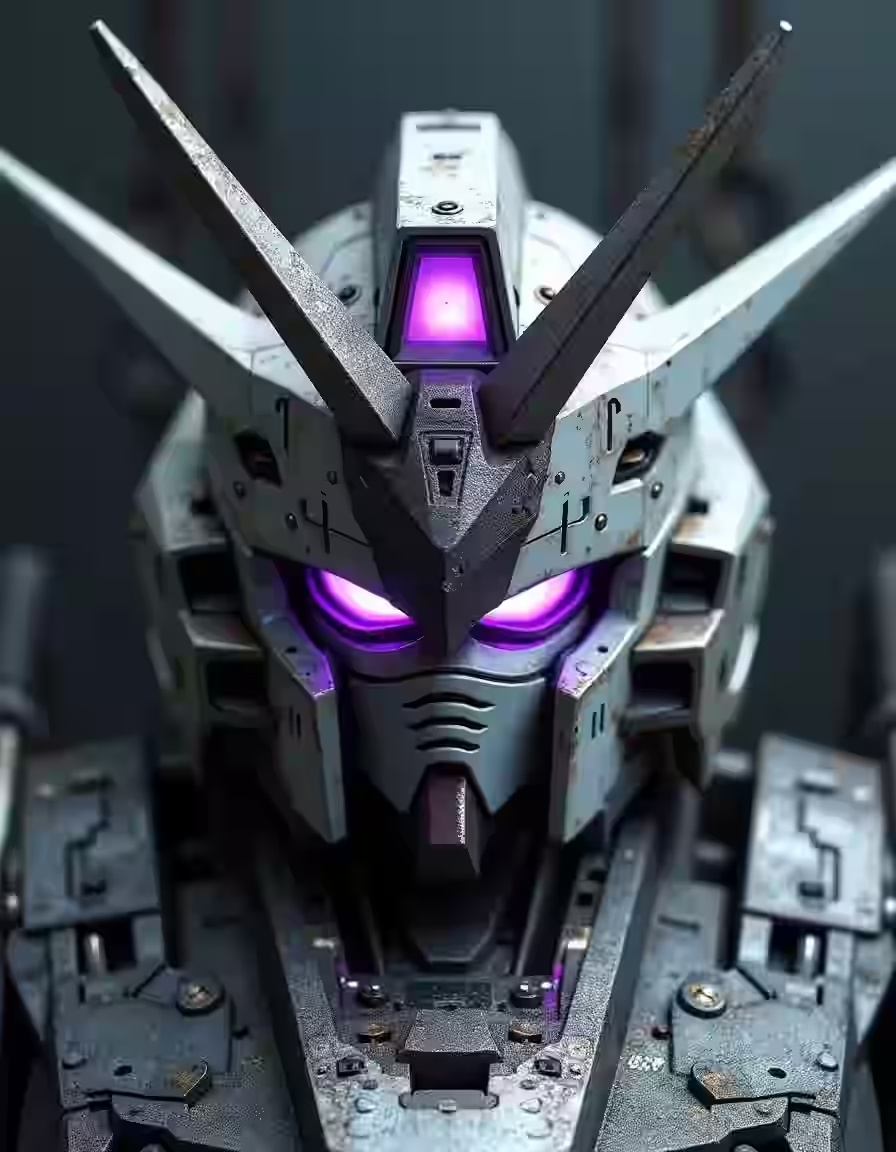
AI outputs
Upscale your generations before you ship them.
FAQ
Questions about Image Upscale
The things people usually ask before their first generation. Anything else? Ask us.
It can soften blockiness, but severe JPEG damage may still show. Better source files always win.
Cut out first when edges matter, then upscale the cutout if you still need size. Upscaling first can thicken fringe.
Image Upscale
Make it bigger without making it worse.
Open the studio and look around without signing in. Generating spends credits from a Starter, Creator, or Pro plan, and every result lands in your gallery.