Video tool · Live in the studio
AI Text to Video Generator
A sentence in, a moving scene out.
Describe a shot the way you'd describe it to a friend, and get a short video clip back. Camera moves, motion, and light included.
No sign-in needed to look around the studio. Or try the simple wan 2.7 text to video page.
Text to Video
- Input
- Text
- Output
- Video
- Live models
- 2
- AI lab
- 1
(01)What it does
Video without the shoot
Text to Video runs on Wan 2.2 and Wan 2.7, two of the strongest open video models available right now.
Text-to-video on trendshiftlabs turns written prompts into short clips. Wan 2.2 A14B and Wan 2.7 are available after sign-in. Wan 2.7 supports optional driving audio uploads.
You can open the studio app and look around without signing in. Generating spends monthly credits on a Starter, Creator, or Pro plan. Outputs save to your gallery so you can reuse them in other tools.
Who it's for
Who text-to-video is for
Use text-to-video when you need a short clip from a written idea: a product motion study, a mood loop, a social bumper, or a concept you cannot shoot yet. Wan 2.2 and Wan 2.7 run here. Wan 2.7 can also take optional driving audio.
If you already have a hero still, image-to-video usually keeps identity better. If music should lead the cut, use audio-to-video.
- Describe the shot
- Subject, motion, mood. 'A slow pan across a foggy harbor at sunrise' is a complete instruction.
- Short clips that loop well
- Perfect lengths for social posts, website headers, and mood pieces.
- Add sound if you want
- Wan 2.7 accepts a driving audio track, so your clip can move to your music.
- Iterate cheaply
- Tweak the wording, run it again, compare versions in your gallery.
(02)How it works
How you use it
Write the shot
One or two sentences about what happens.
Pick Wan 2.2 or 2.7
Fast drafts or highest quality.
Generate and download
Your clip renders in the studio.
(03)Models
What it runs on.Two live models from one lab.
Every model listed here is live in the studio today. Switch between them in the composer; each one reads a prompt a little differently.
- Alibaba
- Wan 2.2 Text to Video
- Wan 2.7 Text to Video
(04)Guide
Prompts that move
Describe the shot like a director, not a novelist. Subject, camera move, and one action beat: "slow push-in on a ceramic mug as steam rises, soft morning window light." Avoid packing five scene changes into one clip.
Short clips are more reliable than epic narratives. Generate, review, then write the next beat as a new job if you need a sequence.
Practical tips
- One camera move per prompt is enough.
- Name the lighting; it sells realism fast.
- Keep logos and tiny text out of the ask when you can.
- Use audio on Wan 2.7 only when the soundtrack should drive timing.
Know before you spend
Video credits and limits
Video spends more credits than a still. Treat first prompts as tests with clear intent, not long scripts. Morphing faces and melting type still happen; check the full clip before you download.
Browse the app free. Generating needs a subscription so credits can bill against your account.
(05)Use cases
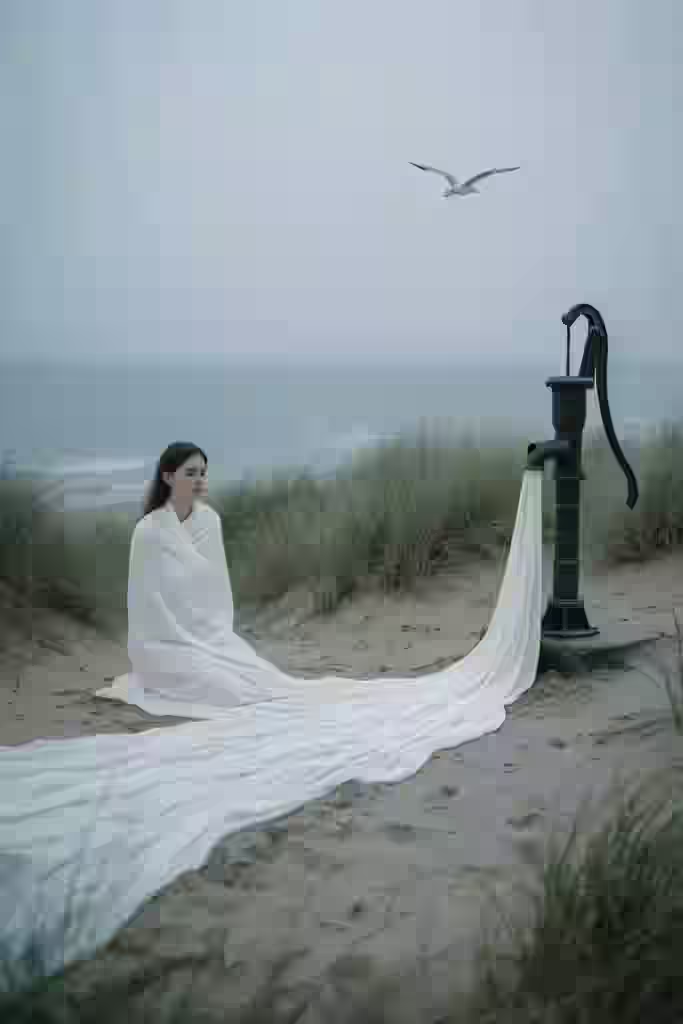
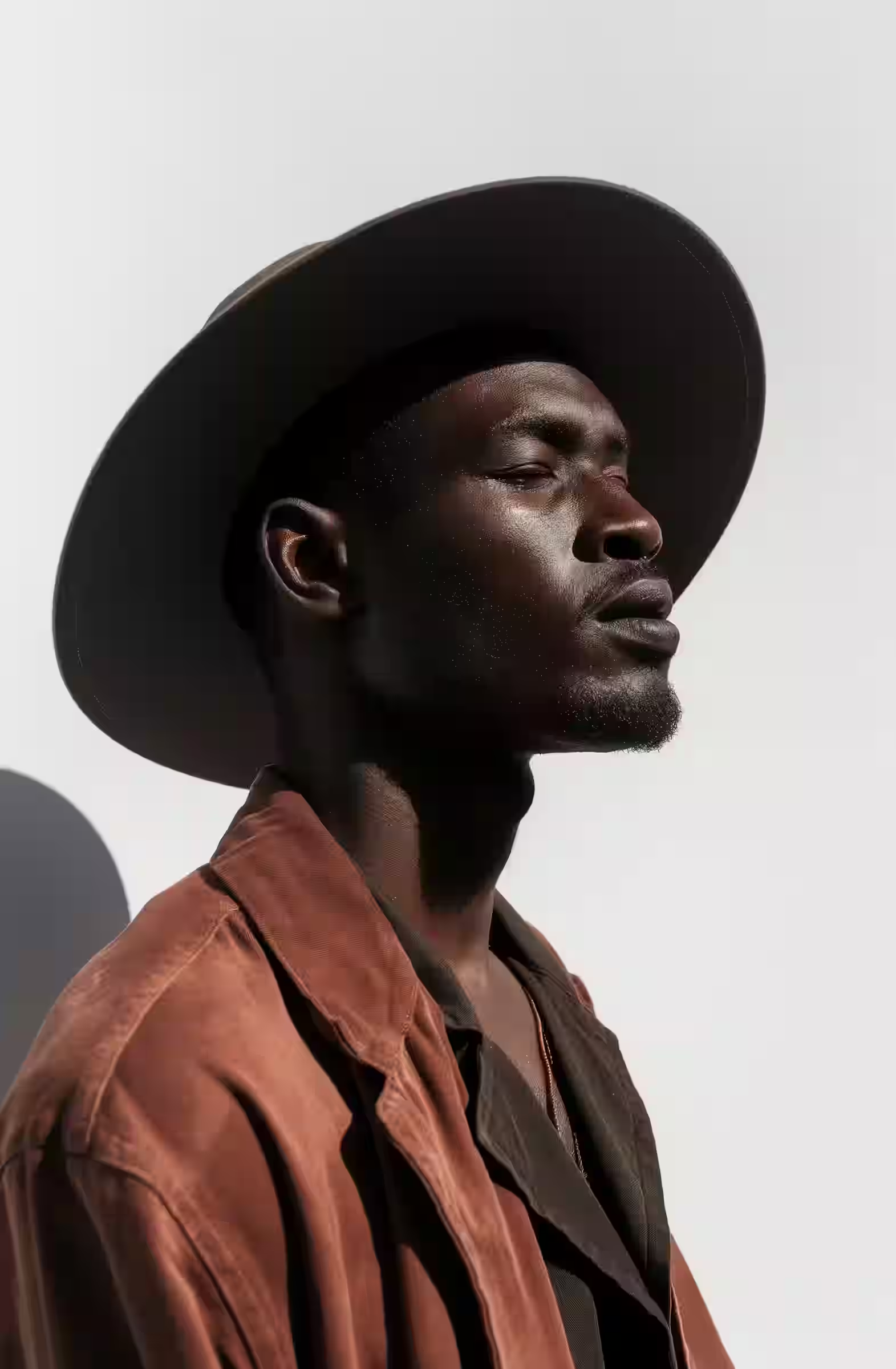
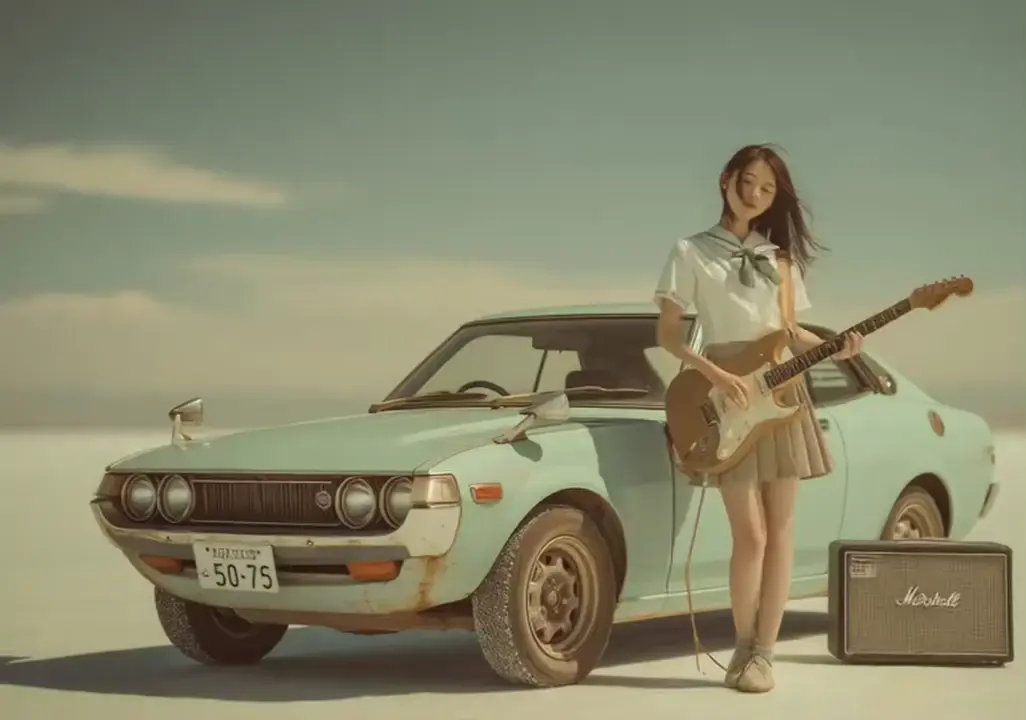
What people make with it
FAQ
Questions about Text to Video
The things people usually ask before their first generation. Anything else? Ask us.
Length depends on the model and settings in the studio. Plan for short social-length takes, not feature scenes.
Use 2.7 when you want the newer controls, including optional audio. Use 2.2 when you already like its look and want a familiar pass.
Text to Video
Your first clip is one sentence away.
Open the studio and look around without signing in. Generating spends credits from a Starter, Creator, or Pro plan, and every result lands in your gallery.