3D tool · Live in the studio
Text to 3D AI Generator
A sentence in. A spinable mesh out.
Text-to-3D is for objects you can describe but have not photographed yet: game props, product concepts, set dressing, print ideas. Write what you want, pick a generator, and preview the mesh in the browser before you download it.
No sign-in needed to look around the studio. Or try the simple text to glb page.
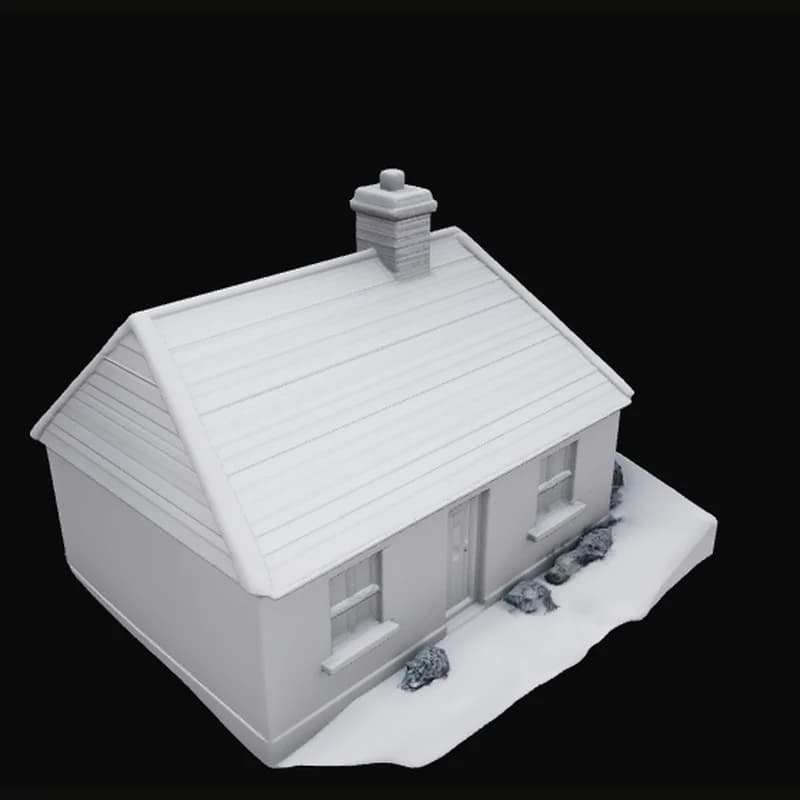
Text to 3D
- Input
- Text
- Output
- 3D
- Live models
- 4
- AI labs
- 4
(01)What it does
Why start from text
Four generators run on this path: Tripo H3.1, Meshy 7.1, Hunyuan 3D Pro, and Hyper3D Rodin. Same studio dock you already use for images and video.
Text-to-3D turns a short description into a textured 3D asset you can preview in the browser and download. Pick Tripo H3.1, Meshy 7.1, Hunyuan 3D Pro, or Hyper3D Rodin in the studio. Sign in and subscribe to generate; outputs save to your gallery.
You can open the studio app and look around without signing in. Generating spends monthly credits on a Starter, Creator, or Pro plan. Outputs save to your gallery so you can reuse them in other tools.
Who it's for
Who text-to-3D is for
Use text-to-3D when you can describe an object but do not have a photo: game props, product concepts, set dressing, collectible ideas, print experiments. Tripo H3.1, Meshy 7.1, Hunyuan 3D Pro, and Hyper3D Rodin all take a prompt and return a textured mesh you can orbit in the browser.
If you already have a clear reference photo, image-to-3D usually matches silhouette better. Start there when likeness to a real object matters.
- Invent, then iterate
- Change the prompt instead of remodeling. Keep the versions you like in your gallery.
- Materials included
- You get textured output, not a bare gray shell you have to paint later.
- Pick the lab for the job
- Each generator leans different on detail, speed, and style. Try two when the first pass is close.
- Credits, not a black box
- Generation spends plan credits. Browse the app free; subscribe when you are ready to run jobs.
(02)How it works
How you use it
Write a concrete prompt
Name the object, material, and a couple of details. Vague prompts waste credits.
Choose a generator
Tripo, Meshy, Hunyuan, or Rodin. Start with one, compare if needed.
Preview and download
Orbit the mesh in the studio viewer, then save it to your gallery.
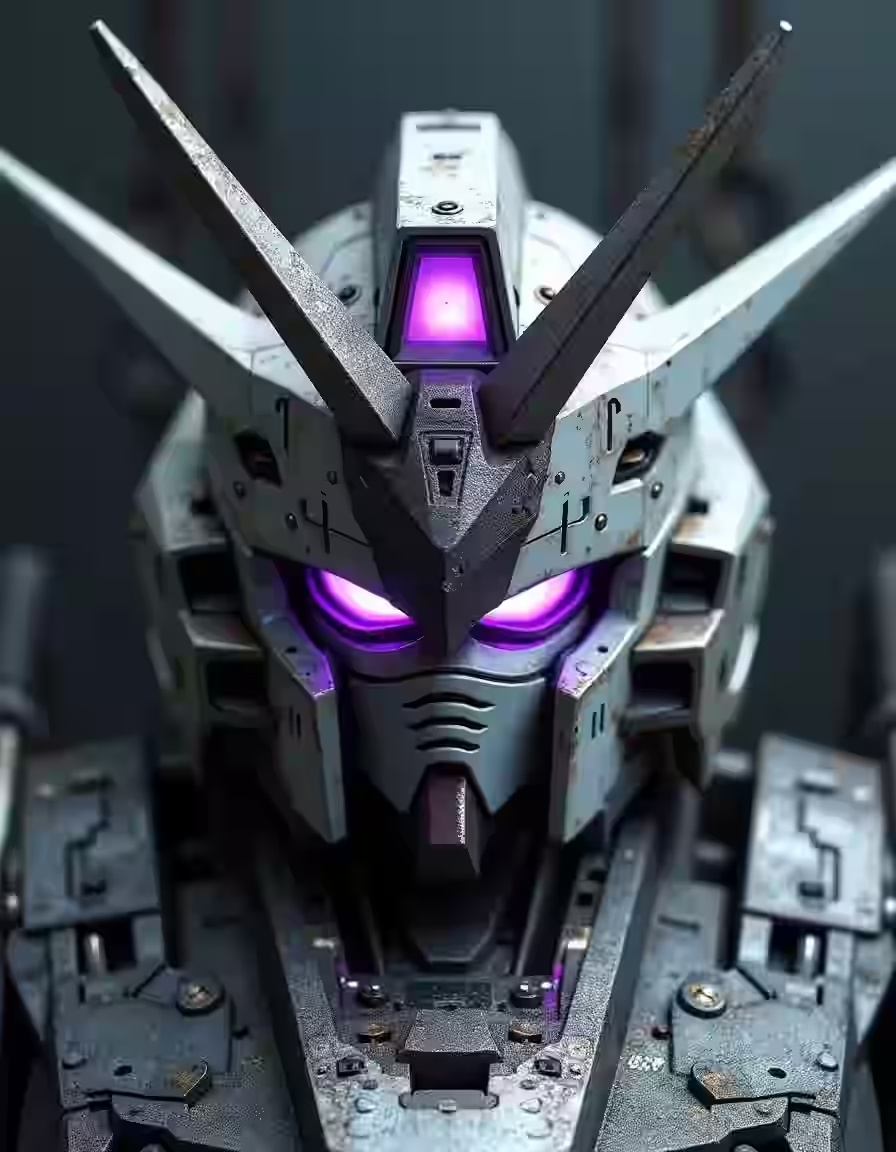
(03)Models
What it runs on.Four live models from four labs.
Every model listed here is live in the studio today. Switch between them in the composer; each one reads a prompt a little differently.
- Tripo AI
- Tripo H3.1
- Meshy
- Meshy 7.1
- Tencent
- Hunyuan 3D Pro
- Hyper3D
- Hyper3D Rodin
(04)Guide
Prompts that build volume
Name the object, the material, and a scale cue. "A small worn leather armchair with brass nailheads, studio lighting" is usable. "Cool furniture" is not. Avoid asking for whole rooms in one mesh; generate hero props, then compose them in your DCC tool.
Try two generators when the first pass is close but wrong in style. Each lab leans differently on detail and taste. Credits are the cost of that comparison, so only compare when the prompt is already concrete.
Practical tips
- Single objects beat crowded scenes.
- Say "single object, centered" when the model invents ground clutter.
- Mention material early: wood, ceramic, brushed aluminum.
- Download and check topology needs in Blender before you promise a print.
Know before you spend
Mesh reality check
AI meshes often need cleanup for production: non-manifold edges, interior junk, or UVs that are good enough for preview and rough for games. Plan a DCC pass for anything shipping in an engine or on a printer.
Thin stems, interlaced geometry, and tiny engraved text fail often. Redesign the prompt toward thicker forms when you care about printability.
(05)Use cases
What people ask for
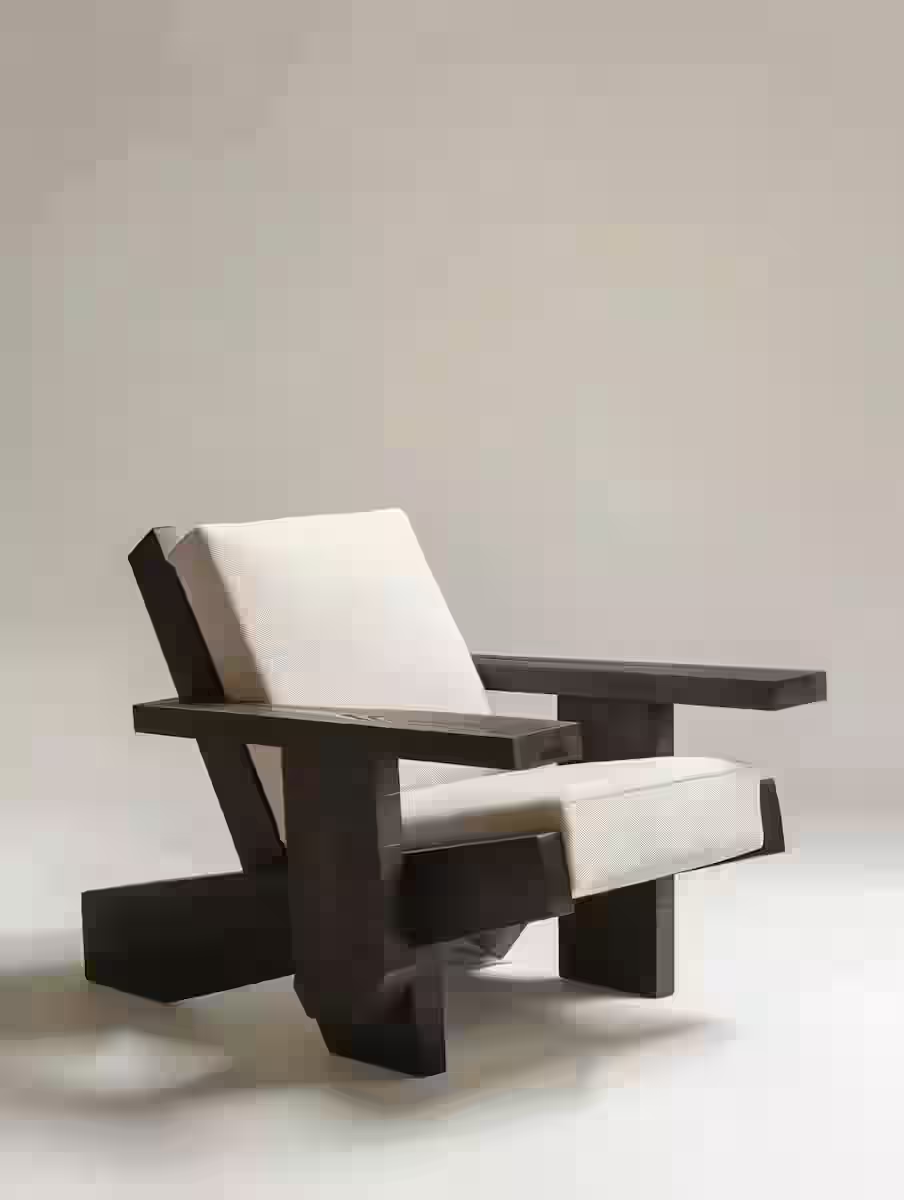
Props and set dressing
Chairs, crates, lamps, and small environment pieces.
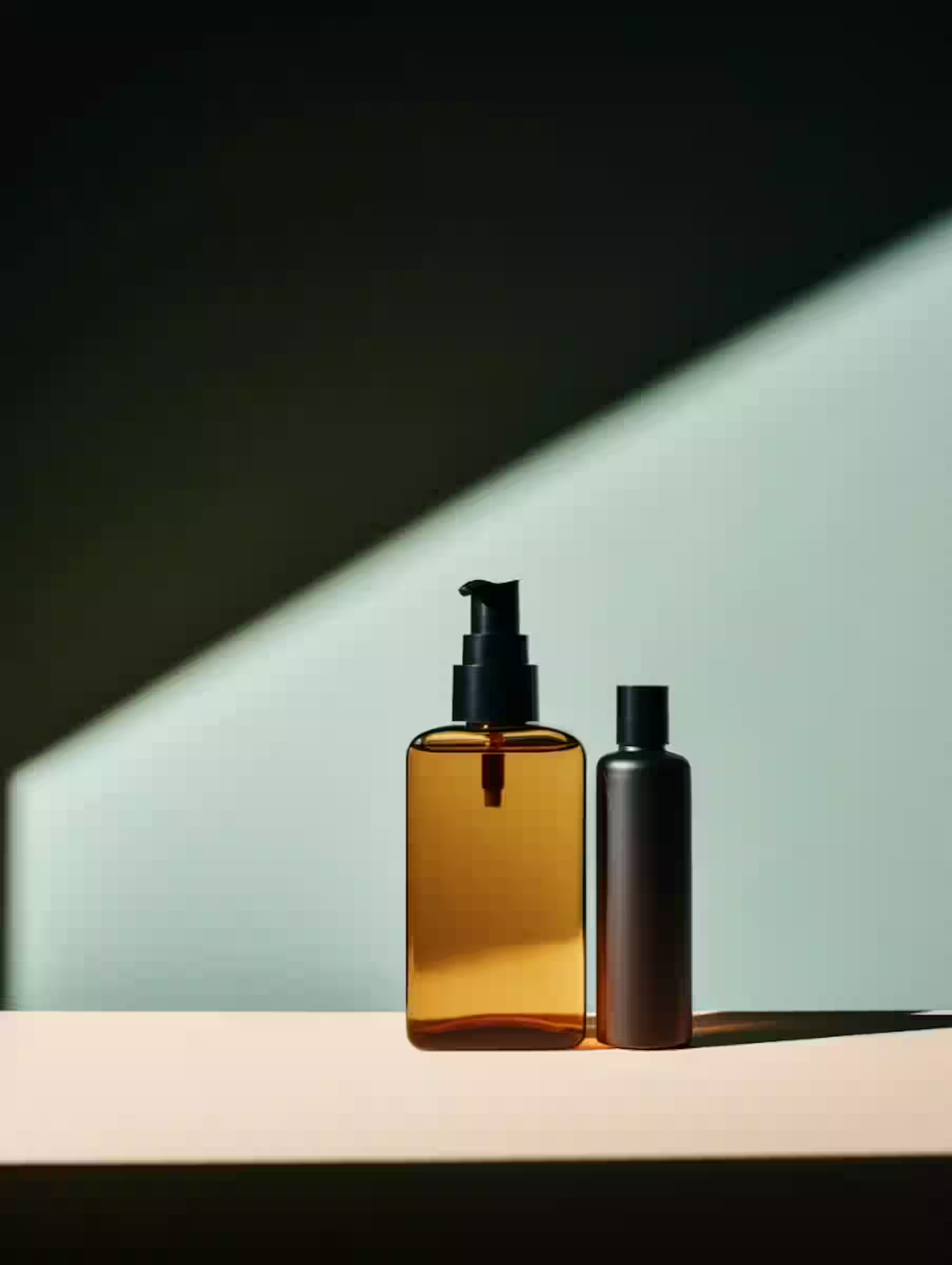
Product concepts
Shapes you can show from every angle before tooling.
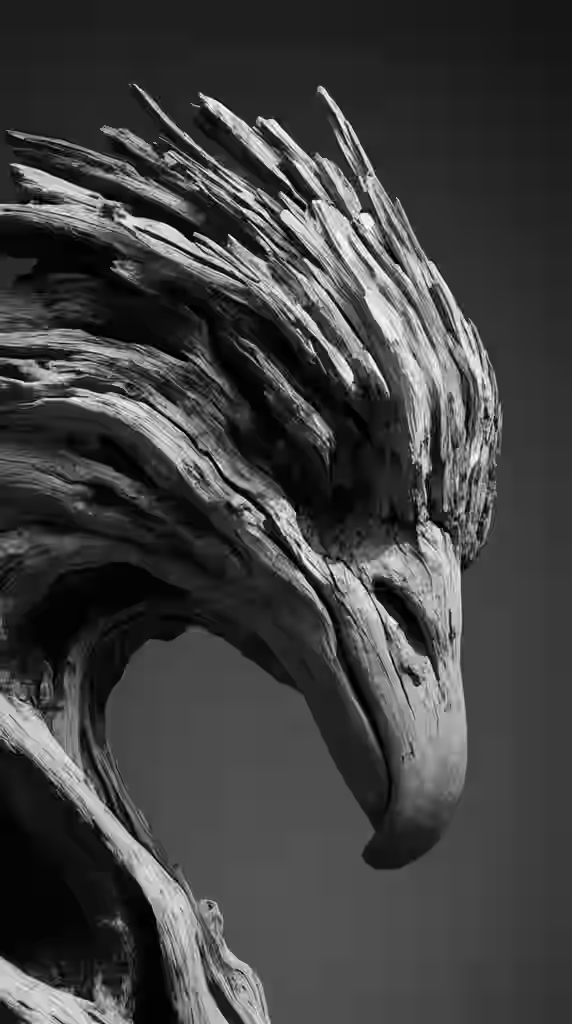
Print experiments
Forms worth sending to a slicer after cleanup.
FAQ
Questions about Text to 3D
The things people usually ask before their first generation. Anything else? Ask us.
Start with Tripo H3.1 or Meshy 7.1 for general props. Try Hunyuan or Rodin when you want another look on the same prompt. Keep the one that matches your pipeline.
Treat it as a strong concept. Run it through your slicer's checks. Many prints need thickness fixes first.

Text to 3D
Open text-to-3D and write the first object.
Open the studio and look around without signing in. Generating spends credits from a Starter, Creator, or Pro plan, and every result lands in your gallery.