Image tool · Live in the studio
AI Background Remover
Clean cutouts, without the clicking.
Upload a photo and get the subject back on a transparent background. No tracing, no magic wand, no patience required.
No sign-in needed to look around the studio. Or try the simple remove background for print on demand page.
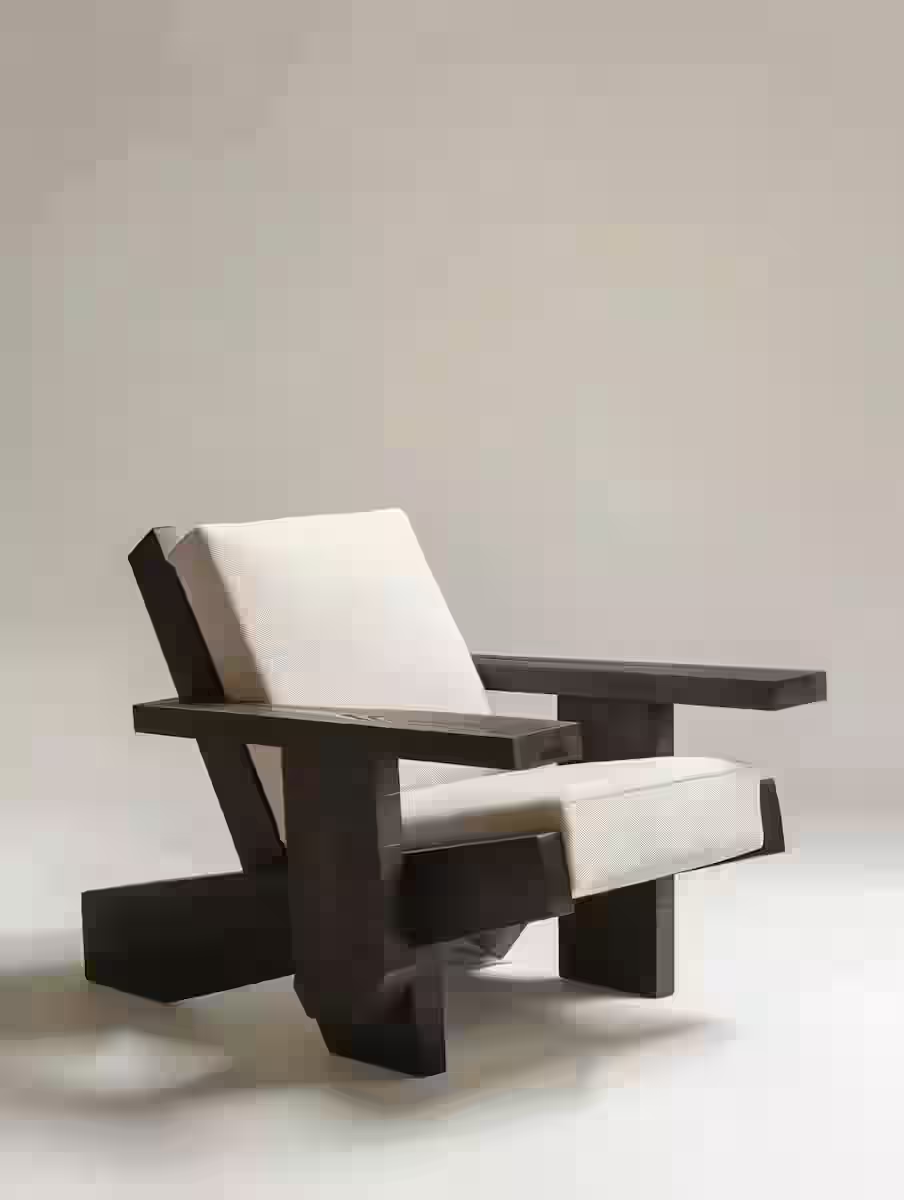
Image to Image
- Input
- Image
- Output
- Image
- Live models
- 2
- AI labs
- 2
(01)What it does
One job, done properly
Background removal sounds simple until you meet hair, glass, and fuzzy edges. This tool handles those too.
Remove Background on trendshiftlabs cleanly cuts subjects out of photos for compositing and reuse. Live tools include Ideogram Remove Background and Bria Background Remove.
You can open the studio app and look around without signing in. Generating spends monthly credits on a Starter, Creator, or Pro plan. Outputs save to your gallery so you can reuse them in other tools.
Who it's for
Who background removal is for
Use it when you need a clean cutout: product listings, stickers, collage frames, presentation assets, or a subject ready for a new backdrop. The studio runs Ideogram and Bria removers so you can pick the one that handles your edges better.
It will not invent a new scene. Pair it with image-to-image or text-to-image when you want a replacement background after the cutout.
- Tricky edges included
- Hair, fur, and semi-transparent things are where most tools give up. Ours are chosen because they don't.
- Transparent PNG out
- You get a file that drops straight into any design tool, deck, or storefront listing.
- Two engines to pick from
- Ideogram and Bria both run live. If one struggles with your photo, try the other.
- Part of a bigger flow
- Cut out a subject here, then drop it into Image to Image to build a whole new scene around it.
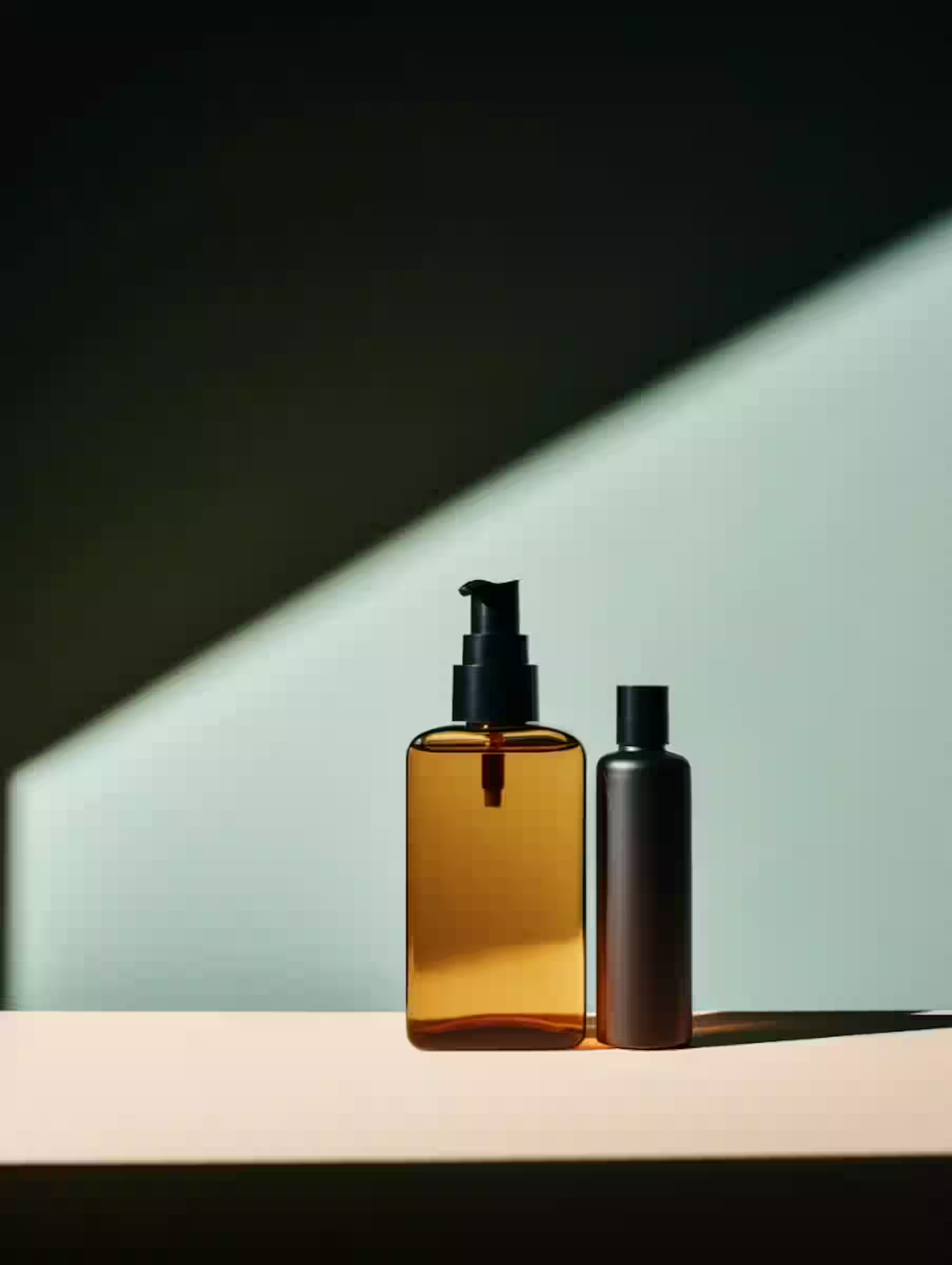
(02)How it works
How you use it
Upload the photo
Any image with a clear subject.
Let it work
The cutout takes a few seconds.
Download the PNG
Transparent and ready to place.
(03)Models
What it runs on.Two live models from two labs.
Every model listed here is live in the studio today. Switch between them in the composer; each one reads a prompt a little differently.
- Bria
- Bria Background Remove
- Ideogram
- Ideogram Remove Background
(04)Guide
Cleaner cutouts
Feed a subject that is clearly separated from the backdrop when you can. Soft hair, motion blur, and busy backgrounds are harder. Zoom crops of the subject usually beat tiny silhouettes floating in empty canvas.
Check the edges at 100% before you download. If fringe remains, try the other remover or tidy in your design tool. Do not upscale a bad cutout and expect magic.
Practical tips
- Prefer high-contrast edges when you control the photo.
- Avoid heavy compression artifacts on the source.
- Export PNG when you need transparency.
- For marketplace shots, cut out first, then drop onto a neutral studio backdrop.
Know before you spend
Limits worth knowing
Glass, smoke, and fine flyaway hair can leave halos. Semi-transparent fabrics may punch through. Extremely similar subject and background colors confuse both removers.
This tool spends credits like any other generation. A failed cutout still costs; spend a second looking at the preview before you batch a folder of files.
(05)Use cases
Made for everyday jobs
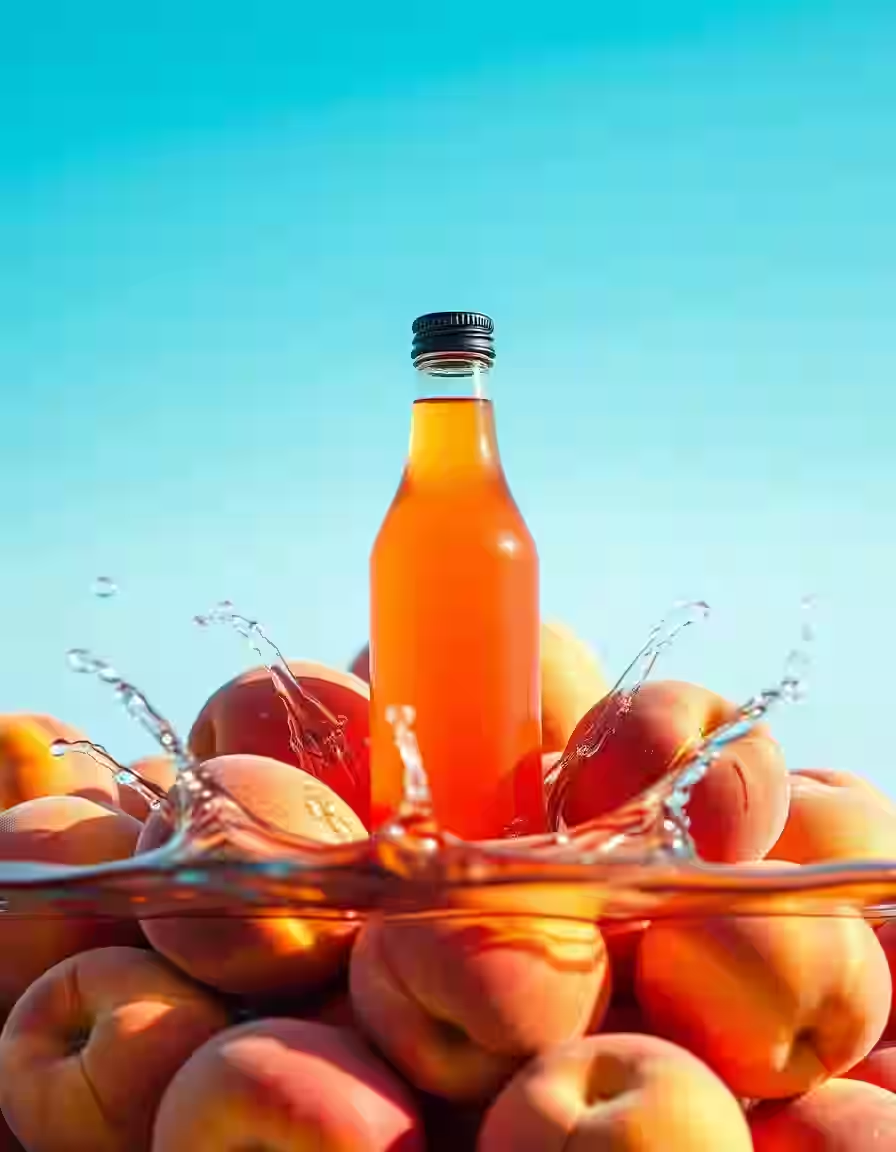
Product listings
Clean white or transparent backdrops for every item.
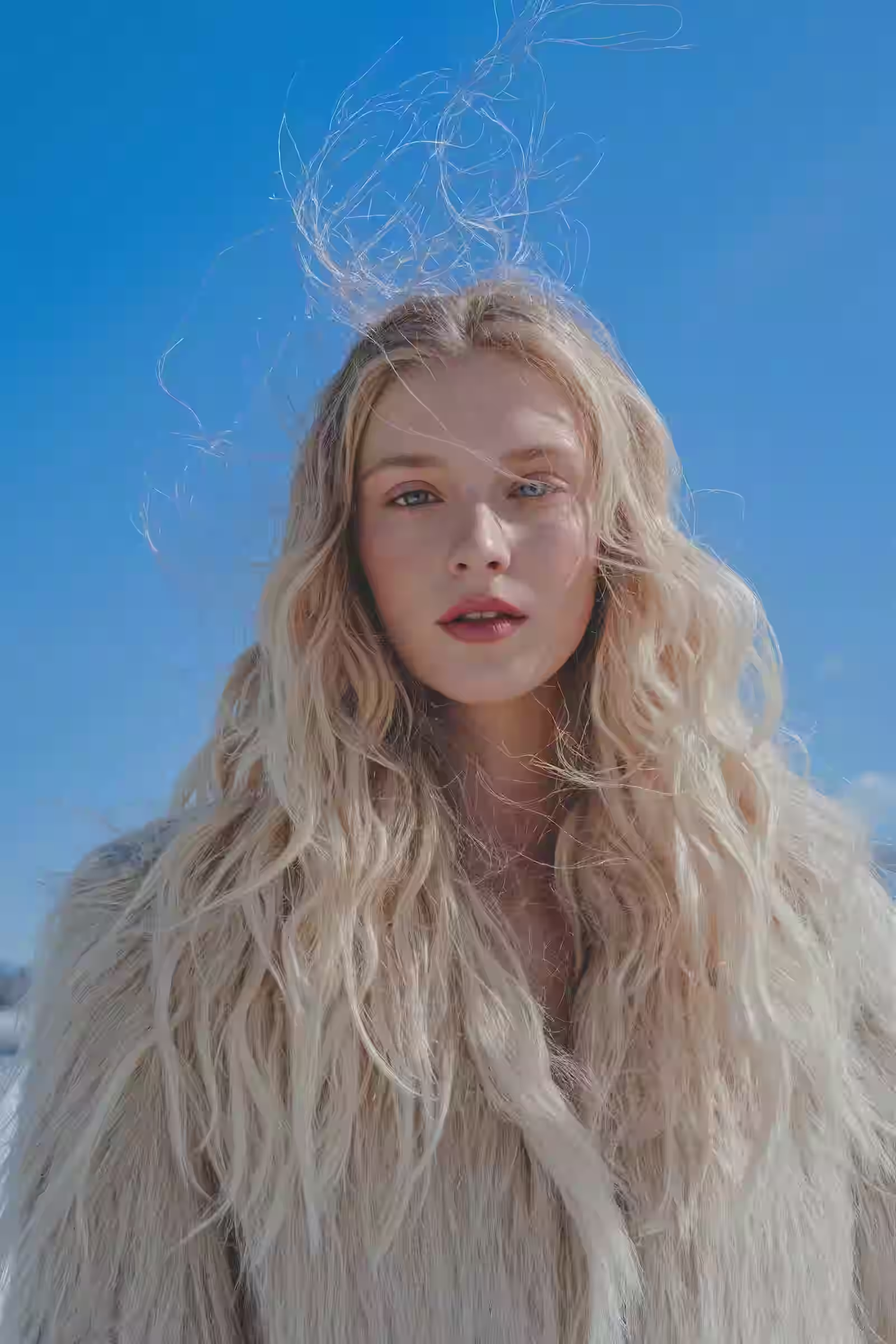
Profile pictures
Lift yourself out of any photo, put yourself anywhere.
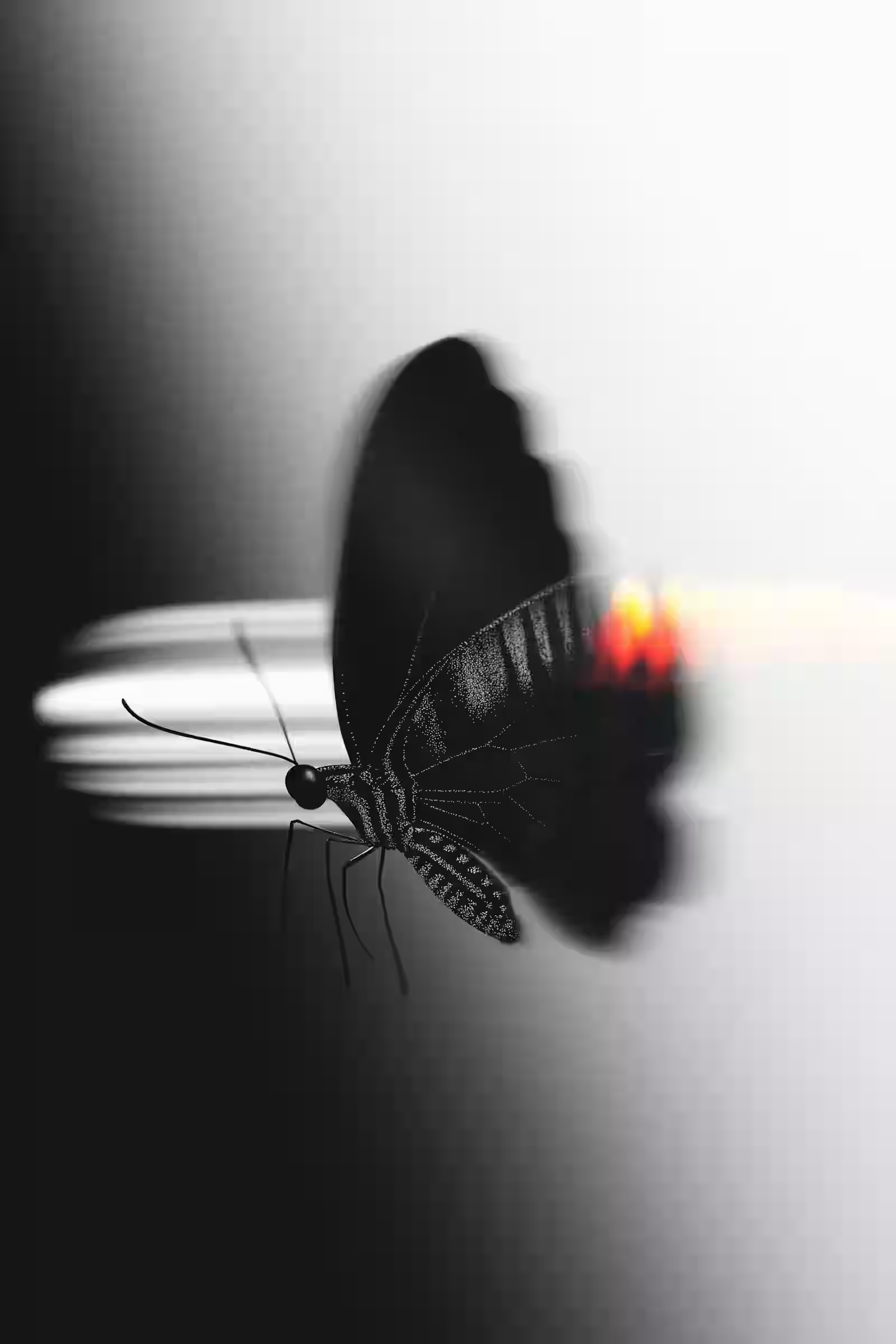
Design material
Cutouts that drop straight into posters and thumbnails.
FAQ
Questions about Remove Background
The things people usually ask before their first generation. Anything else? Ask us.
Yes. Download the cutout for compositing. If you need a new backdrop, place the PNG into your layout or send the subject through another image tool.
Try Ideogram first on product shots. Switch to Bria if edges look soft or the subject is complex. Keep the better of the two.

Remove Background
Stop tracing edges by hand.
Open the studio and look around without signing in. Generating spends credits from a Starter, Creator, or Pro plan, and every result lands in your gallery.